Group quotes into a theme
You get a named group of quotes that say the same thing, and a list of where the theme is used.
Create a theme
- Click Themes in the tree.
- Click New theme.
The new theme opens as "Untitled theme". Give it a name and a description (below).
Name and describe it
- Click the name at the top of the inspector (the Theme title field), type, and press Enter. In the tree you can also right-click the theme and choose Rename, or select it and press F2.
- Click Edit beside the description.
- Fill in Description and click Save. Cancel discards the change. A blank Title keeps the old name.
Add quotes
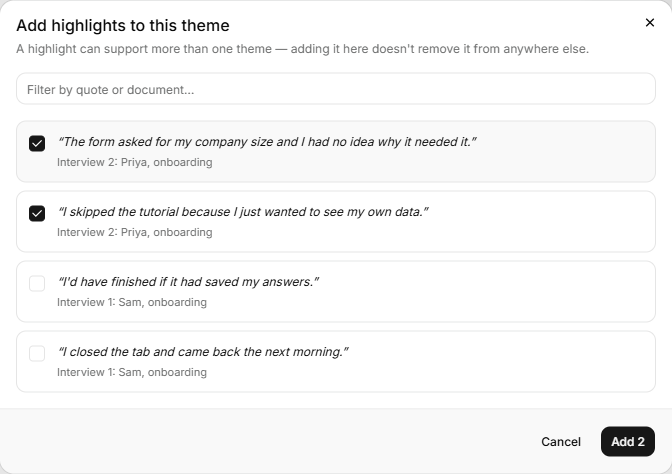
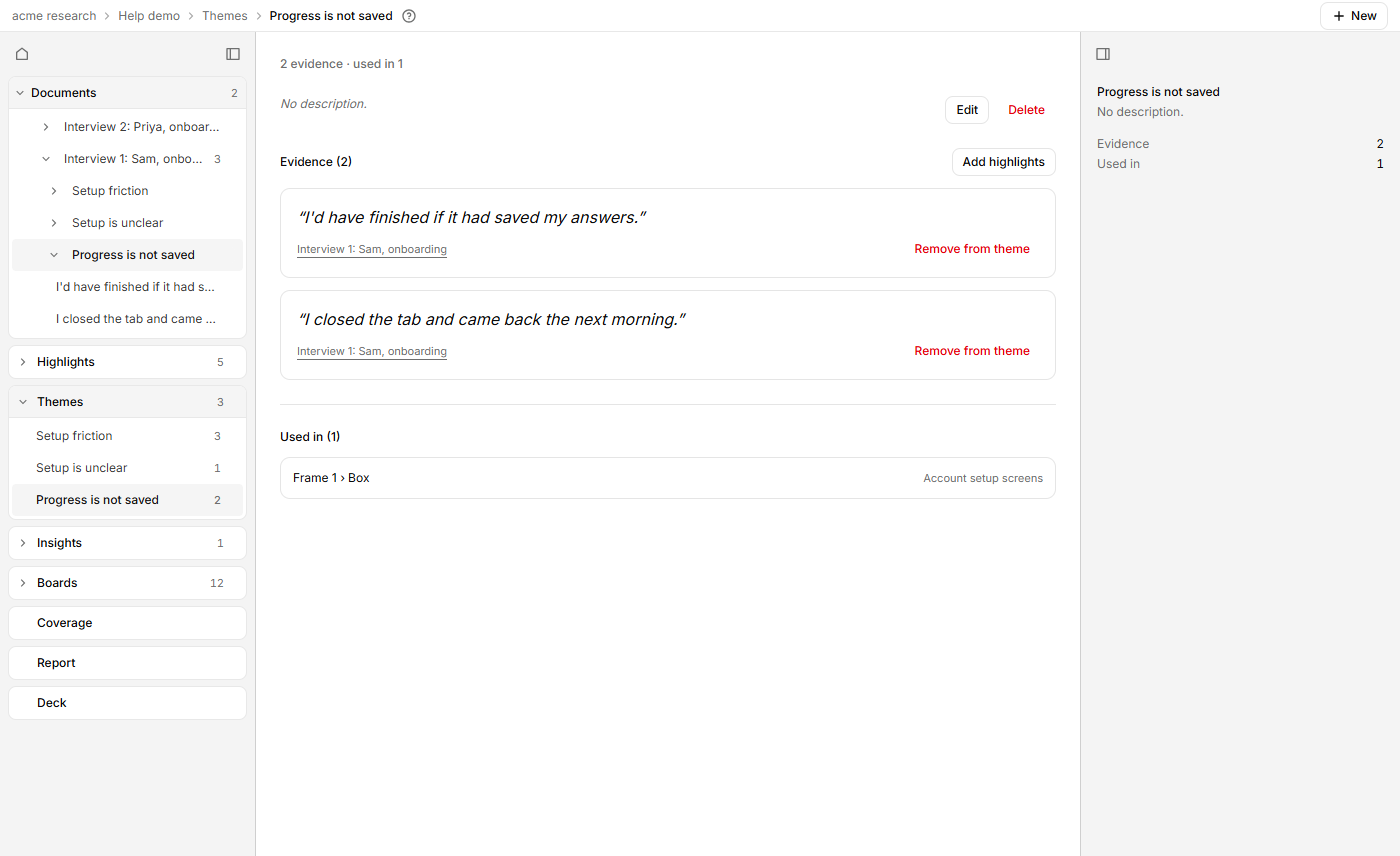
- Click Add highlights next to Evidence.
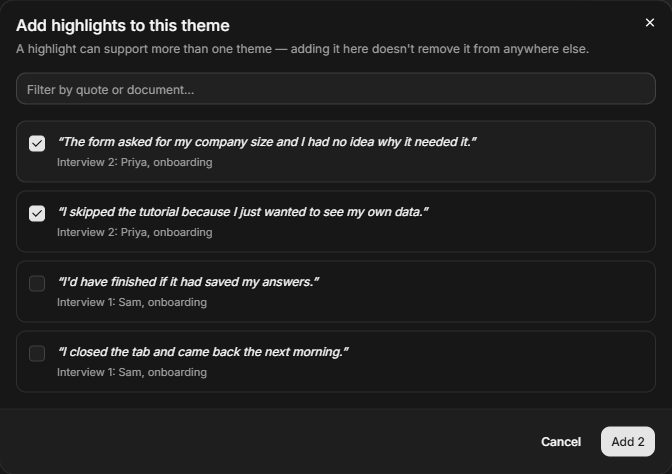
- Tick the quotes in Add highlights to this theme. Use the filter box to narrow the list by quote or document.
- Click Add. The button shows how many you ticked, such as Add 2.
A quote can sit in several themes, and adding it here doesn't take it out of another. Each row names its document. Click the name to open the transcript.
Remove a quote or the theme
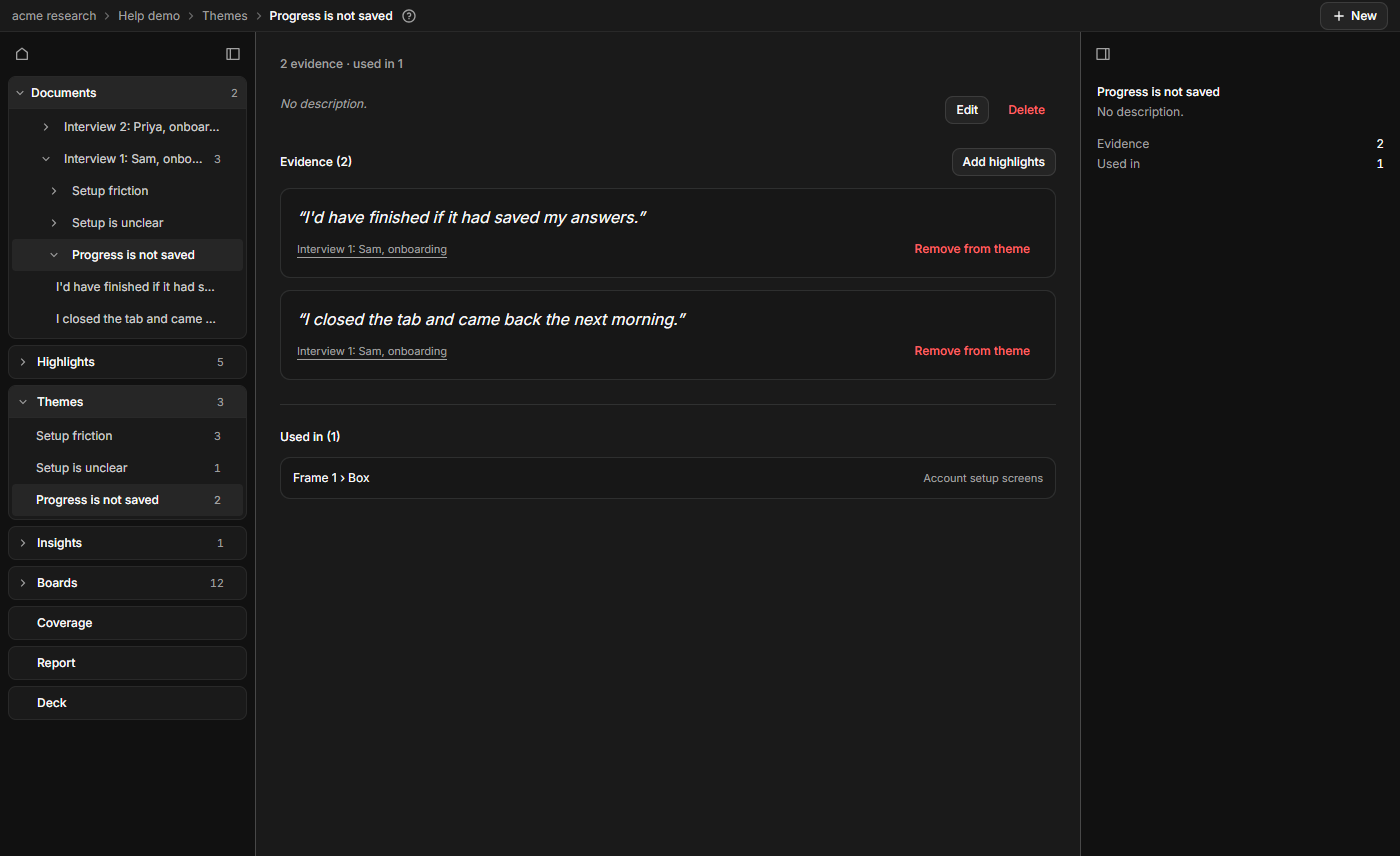
Click Remove from theme on a row. The quote stays in its document and in any other theme.
To remove the theme, click Delete, then Delete theme. The quotes aren't deleted, only the grouping. The theme moves to Deleted, under Themes in the tree, and for 30 days you can click Restore on its row.
See where it is used
Used in at the foot of the page lists the prototype screens and elements that cite the theme. Click a row to go to that element. If the list is empty, nothing links to the theme yet.
To have the AI propose themes from your quotes, see Let the AI suggest quotes, themes and insights. To write up a finding from several themes, see Write an insight from your themes.