Link evidence to a screen or element
You get the reason behind a screen, a button or a line of text attached to it, so anyone can see the quotes, themes and insights that back it.
You need a prototype with something drawn on it, and at least one insight, theme or highlight in the same project. See Draw screens and shapes on a prototype. Evidence attaches to prototype elements only, not to process steps.
Link evidence
- Select a screen or any element on it.
- In the inspector, open the Prototype tab. Next to Why, click Link.
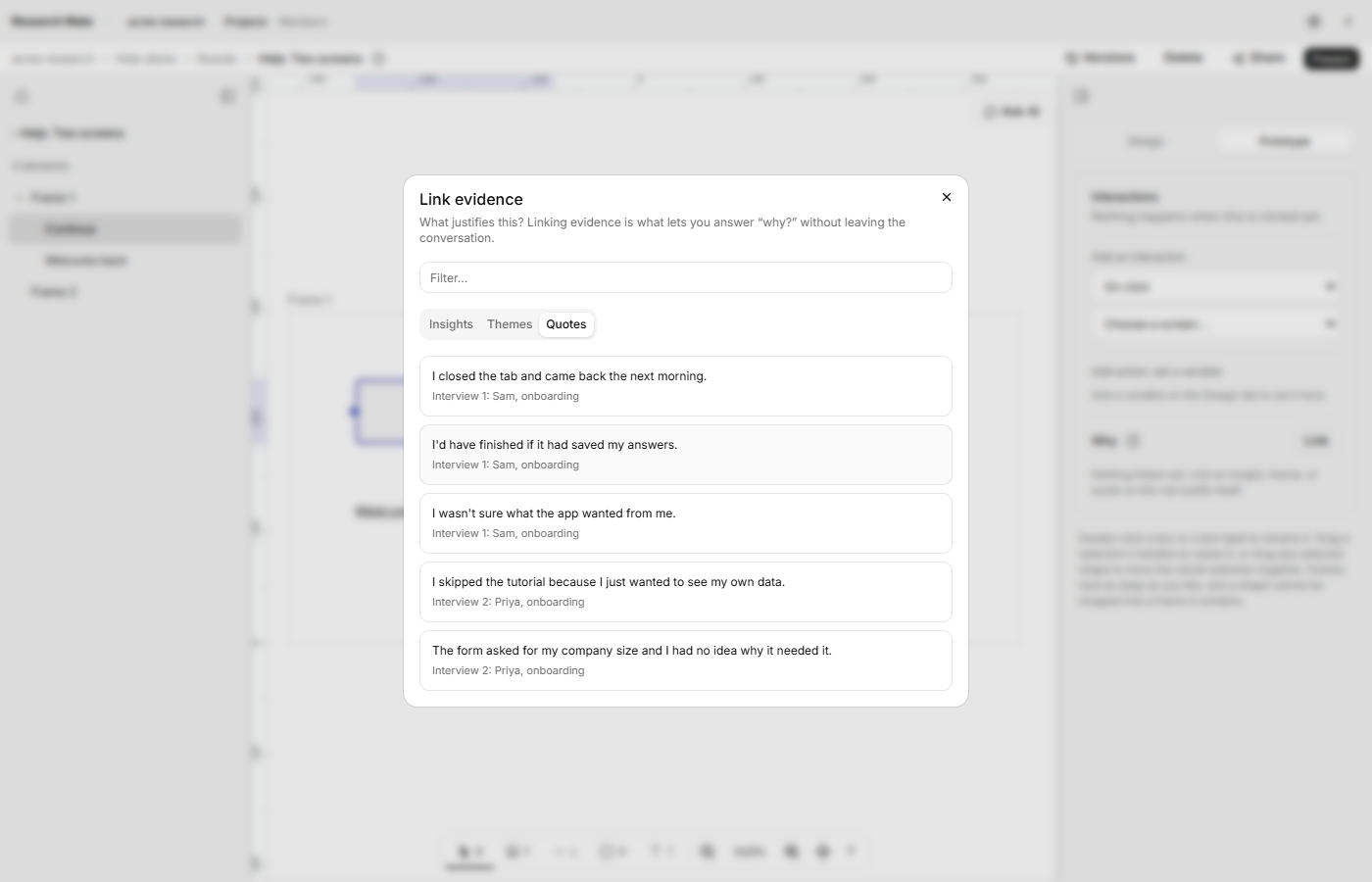
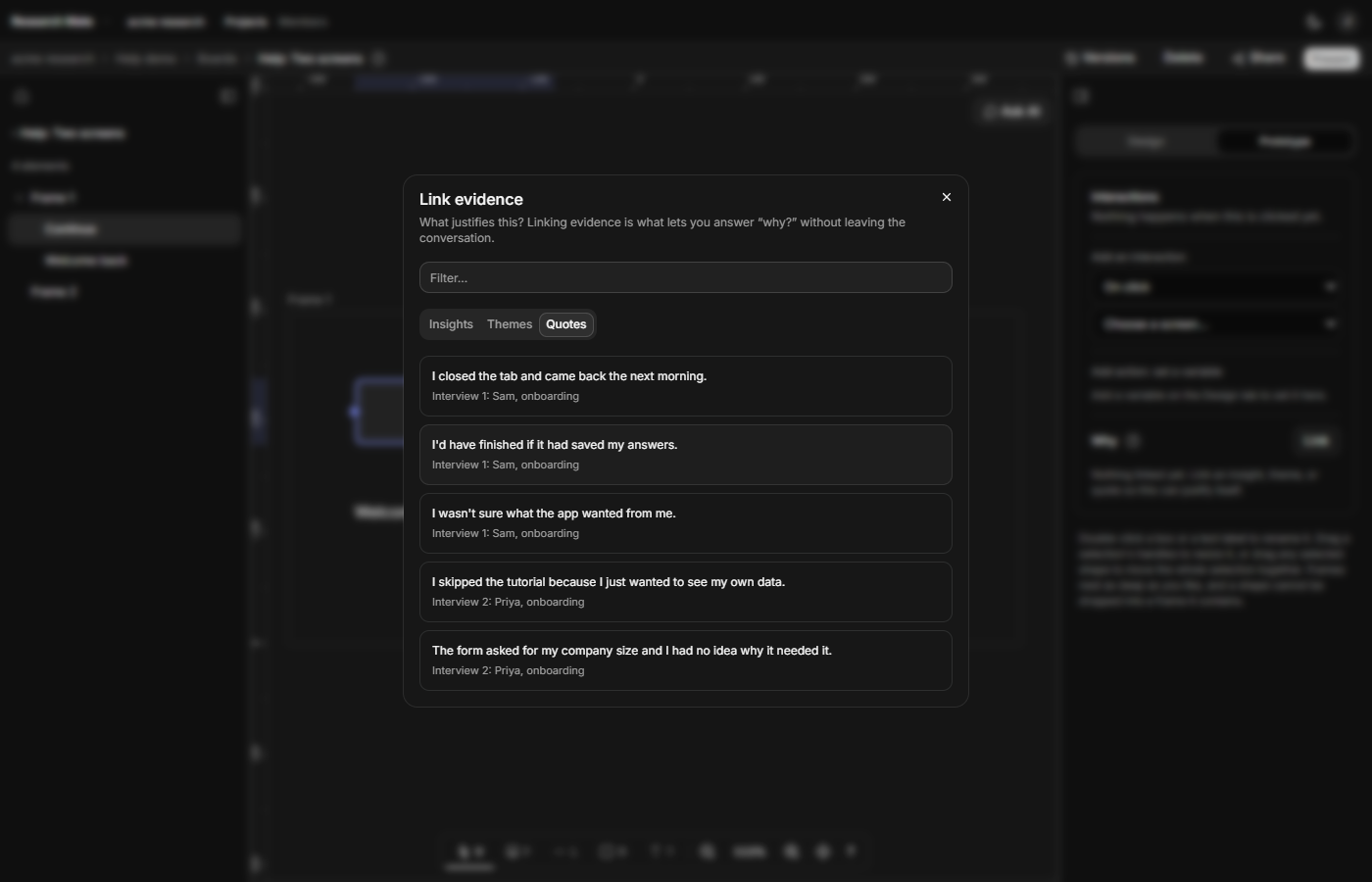
- In Link evidence, pick a tab: Insights, Themes or Quotes. Type in Filter evidence to narrow the list.
- Click the one you want. The dialog closes and a card appears under Why.
The heading counts what is linked, such as Why · 2. A card shows a title, a badge (insight, theme or quote) and a line in italics: the start of an insight's summary, a theme's description, or a quote's passage. A quote's card is titled Quote. Only evidence in the current project is offered.
Open or unlink it
Click a card's title to open the insight, theme or document it points to. Click Unlink to remove the link. The insight, theme or quote is not deleted, and you can link it again.
Instances
An instance (a copy of a component) shows the component's own evidence under Why, marked "From the … component", with no Unlink. To change it, select the component's master (its row under the component in the layers list) and unlink it there.
When an element is deleted
Deleting a screen or element deletes the links on it. A message tells you how many: "2 evidence or logic links removed. Undo won't restore them." Undo brings the shape back, but not its links. Restoring a version from before the delete brings the links back too.
See it in use
Used in, on a theme or insight, lists the screens and elements that cite it. Coverage lists the screens with nothing behind them. With nothing selected, the Prototype tab also flags any element outside a screen that carries evidence, because Present can't show it.