Read the report and build a deck
You get two ways to hand your research to someone who isn't in the project: a report they can read down from each finding to the quotes, and a deck of slides built from the same evidence.
Both read what the project holds now. Neither is a copy: change a theme or an insight, and the next visit shows it.
Read the report
Click Report in the tree. Three columns sit side by side:
- Insights, one row per insight. Click one.
- Themes, the themes behind it, with the insight's summary above them and how many quotes each holds. Click one.
- Quotes in that theme. Click one to see it in context, with its document and an Open in transcript link.
On a narrow window you see one column at a time, with Back to insights and Back to themes to climb up. The address changes as you drill, so you can copy it for a teammate in your organisation.
If Insights says "No insights yet", click Write one.
Save the report as a PDF
Click Print or save as PDF. Your browser's print dialog opens. Choose "Save as PDF" as the destination.
The printout is one column: the project name, then each insight on its own page with its summary, where it is used, its themes and their quotes. The columns on screen don't print.
Build a deck
Click Deck in the tree. The inspector lists two kinds:
- Findings readout (the default) is a title slide, a list of your findings, then for each insight a slide with its statement and a slide of quotes for each of its first three themes. A long project is cut short, and the last slide says how many findings were left out.
- Screen evidence is for one screen of a prototype. Pick a screen under its board's name and you get a title slide, the screen with a list of what it cites, then a slide for each linked quote, theme and insight. With no screen picked, the page says "Pick a screen to build a deck from the evidence behind it." With no frames drawn yet, the inspector says "No screens yet. Draw a frame on a prototype board and it will be listed here."
The deck is built each time you open it and isn't saved.
Present the deck
- Click Present at the top of the deck. The slides fill the screen.
- Press the right arrow, Page Down or Space for the next slide. Press the left arrow or Page Up to go back. Home and End jump to the first and last.
- Press Escape, or click Exit presentation at the top right, to leave.
This steps through slides only. To click through a prototype itself, with the why and the process one key away, see Present your prototype.
Download the deck as a PDF
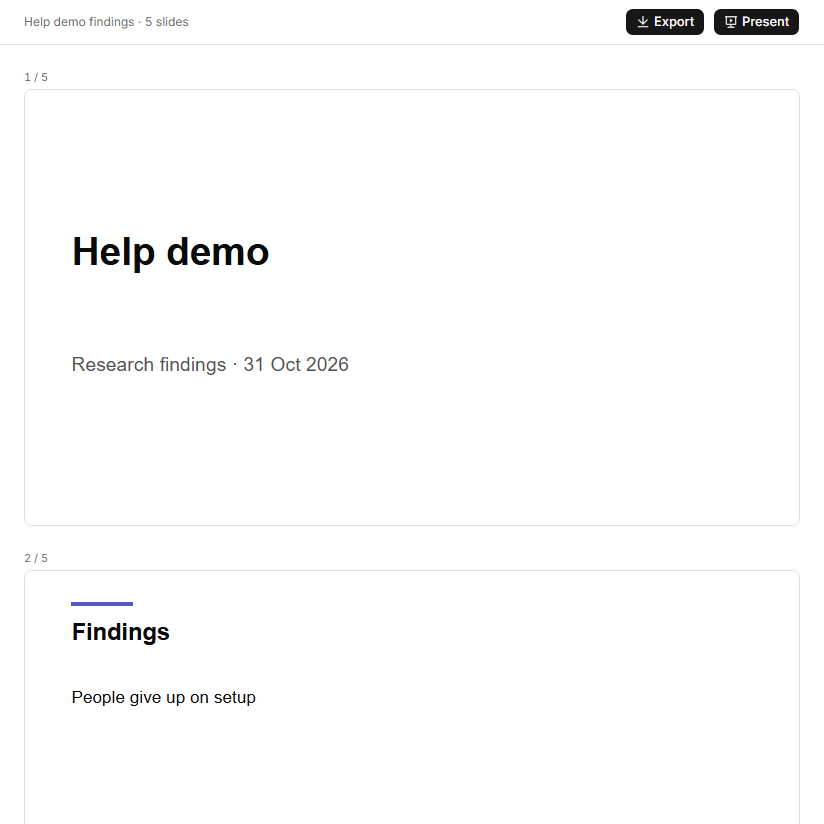
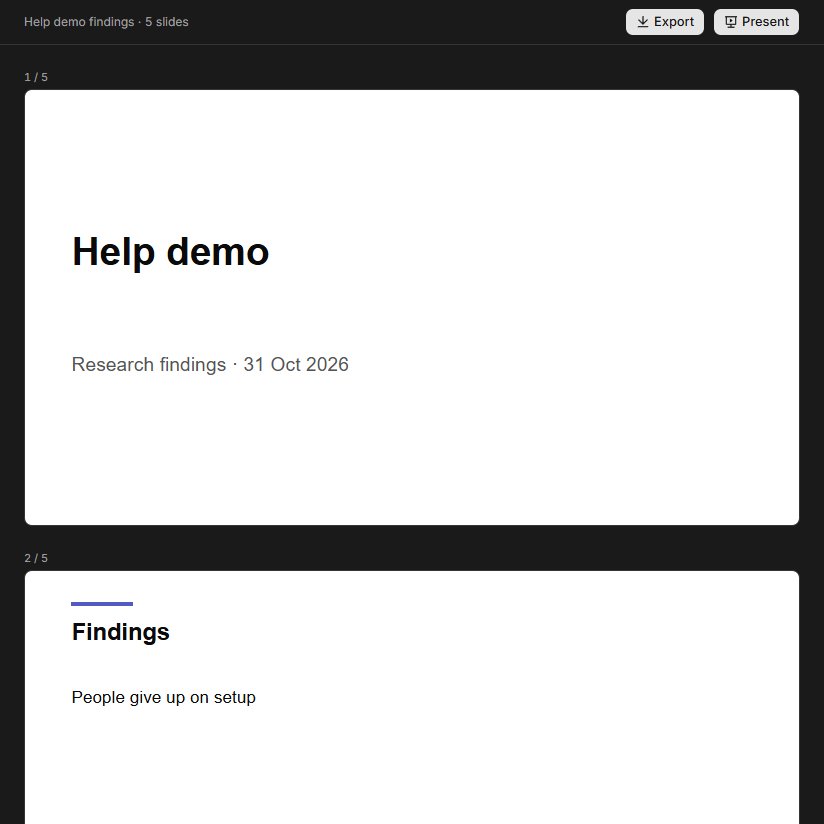
Click Export beside Present to download the deck as a PDF, one page per slide, named after the deck and the day, for example search-sailings-screen-evidence-2026-10-18.pdf. While it works the button reads Exporting…. A screen deck sends a picture of the frame drawn in your browser, so open the deck with the screen showing.
If it doesn't work
- "This deck couldn't be built. Reload to try again." Reload the page. If it stays, the problem is on our side and has been reported.
- "That screen is not here any more. Pick another to build its deck." The frame or board was deleted, so choose another screen.
- "Too many deck exports. Try again in a few minutes." You have exported more than 60 times in ten minutes. Wait, then try again.
- A report or deck with nothing in it means no insights yet. Start with Write an insight from your themes.