Present your prototype
You get a full-screen, read-only showing where you click through the screens, and the reason behind each one is a keypress away.
For the idea behind the layers, see The three layers. To make elements clickable first, see Make a prototype clickable.
To see how real people get on with your screens, run a usability test instead. A test link is not a share link, and a test covers one page of a prototype. See Test a prototype with real people.
Start and leave
- Open a prototype board and click Present in the bar above the board.
- Click Exit, top right, to go back to the board.
Present opens on the first flow start, or on the first screen if there isn't one. If you reload the page, it opens on the screen and layer you were on.
Click through the screens
- Click an element that has a click interaction to go to its screen.
- Press ← or → to step through the screens in turn.
- Press Esc to go back to the screen Present opened on (the flow start, or the first screen).
Esc also puts every variable back to its default.
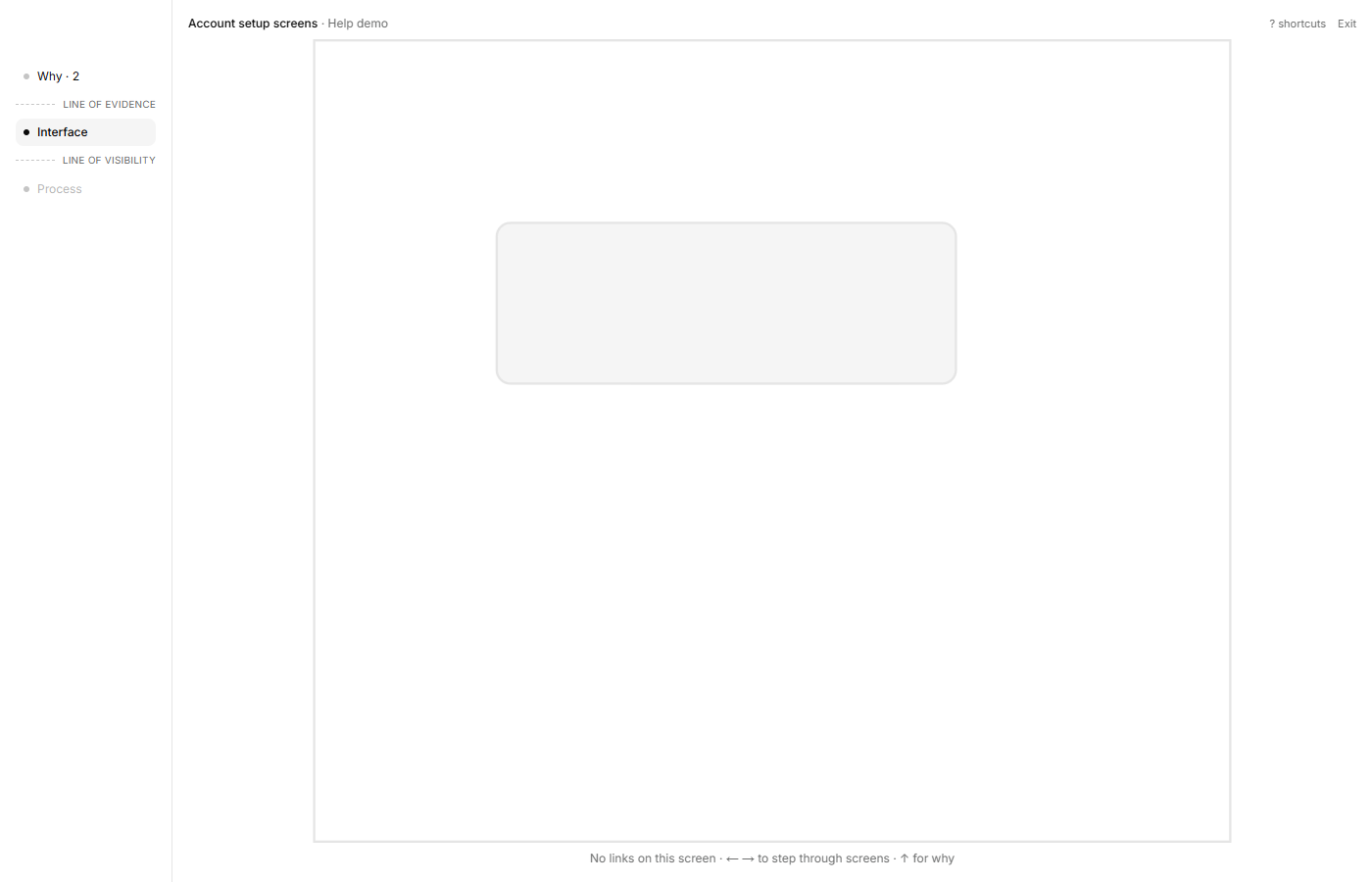
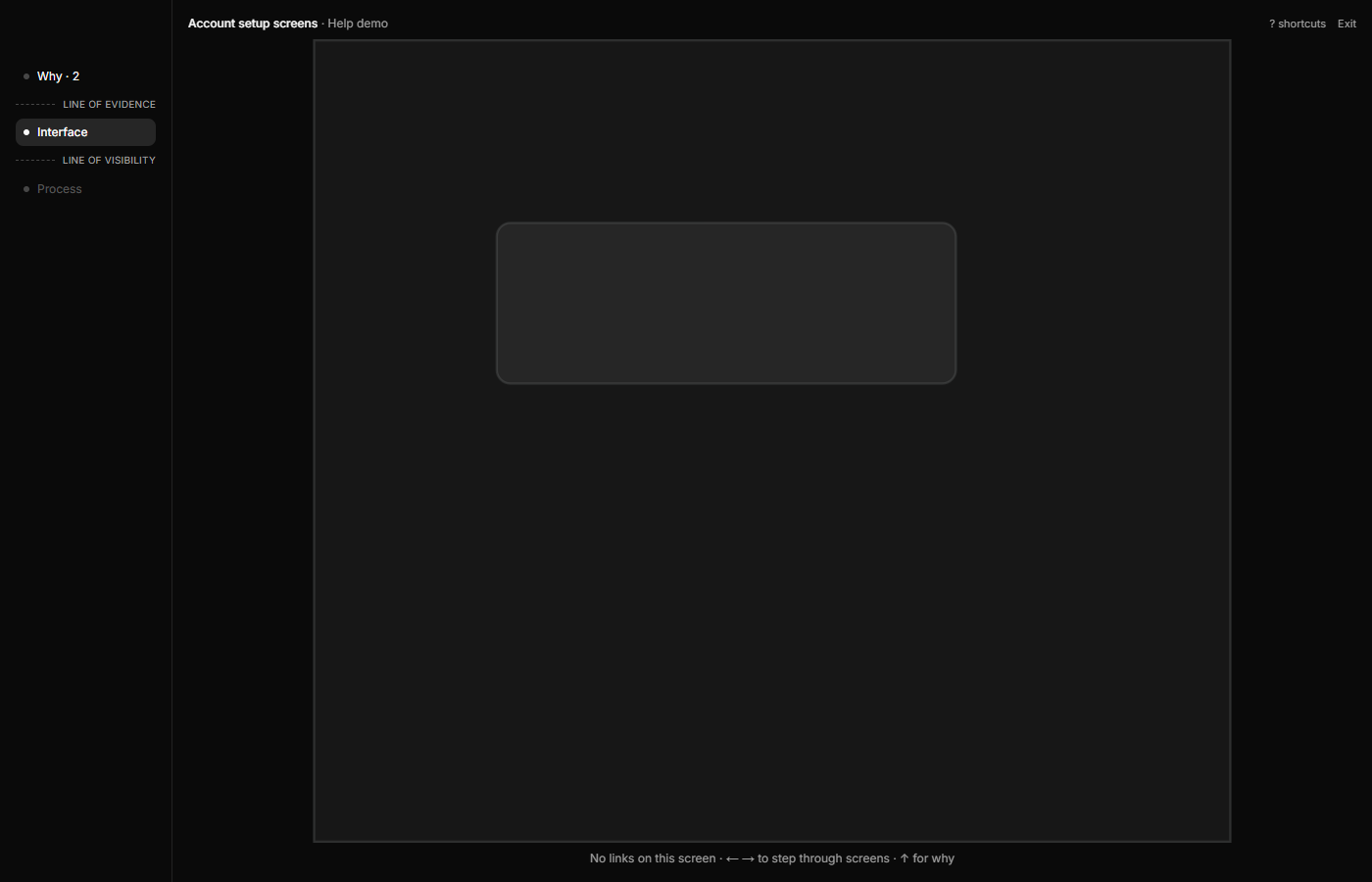
A hint at the bottom lists the keys that work right now. On a screen with no links it reads "No links on this screen · ← → to step through screens", and an empty screen shows "No links on this screen yet. Use ← → to step through screens." in the middle.
See the why
- Press ↑. The research linked to this screen, or to anything on it, slides down over it.
- Read the quotes, themes and insights. Each is labelled Insight, Theme or Highlight, under the element it backs.
- Press ↓ or Esc to come back to the screen.
If nothing is linked, ↑ does nothing and the rail says "Nothing linked to this screen". Link evidence in the Prototype tab.
See the process
- Press ↓ (or Enter) on a screen that is linked to a process step. The process board opens, framed on that step.
- Press ↑ or Esc to return to the screen.
This needs a link from the screen to a step: in the Prototype tab, pick one under Logic with Link a step…. Without one, ↓ does nothing.
The layer rail
The rail on the left is Why, Interface and Process, with "line of evidence" and "line of visibility" between them. Why shows how many cards the screen has, such as Why · 2. Click a name to go there, or press 1, 2 or 3. A name that can't be reached is dimmed.
Keys
| Where | Key | What it does |
|---|---|---|
| Screen | ← / → | Step between screens |
| Screen | ↑ | The why |
| Screen | ↓ / Enter | The process |
| Screen | Esc | Back to the screen Present opened on |
| Why | ↓ / Esc | Back to the screen |
| Process | ↑ / Esc | Back to the screen |
| Any layer | 1 / 2 / 3 | Why / Interface / Process, where that move is possible |
| Any layer | ? | Show or hide Shortcuts |
Click ? shortcuts for the same list.
Present another kind of board
Click Present on a process diagram, service blueprint, journey map or affinity board and it opens that board, read-only, on Process.