Highlight and tag a quote
You get a marked passage you can tag, lengthen and find again from the Highlights list.
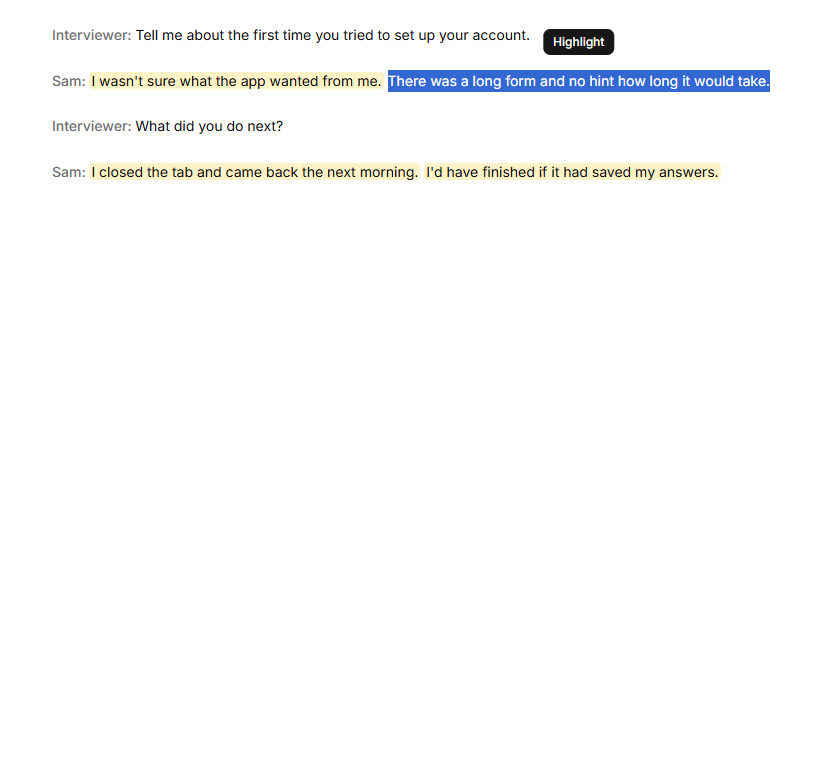
Highlight a passage
- Open a document from the tree.
- Select the words with your mouse.
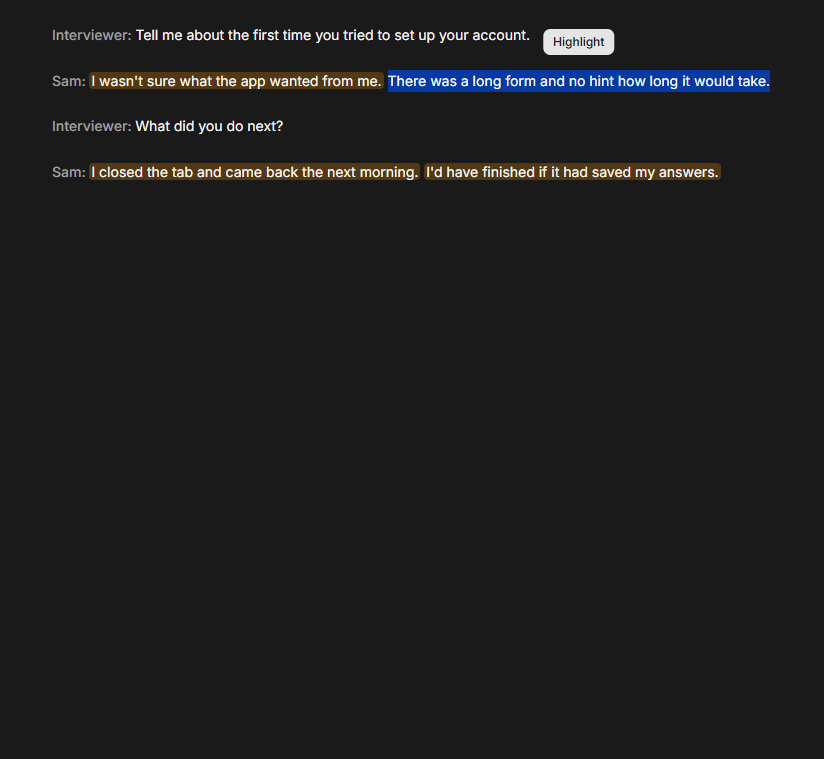
- Click Highlight, which appears beside the selection.
With the keyboard, Tab to the transcript, extend a selection with Shift and the arrow keys, then press Enter. Tab also reaches the Highlight button. Without a mouse you can't start a selection in plain text unless you turn on your browser's caret browsing (F7 in most browsers).
The passage turns amber and a card for it appears in the inspector. Where two highlights overlap, the amber is darker.
A highlight stays inside one speaker's turn; see Speakers and turns.
Tag it
- On the card, click the Add tag… box.
- Type a name and press Enter.
Capital letters don't matter: "Onboarding Friction" and "onboarding friction" are one tag. To remove a tag, click the × beside its name on the card.
Lengthen or shorten it
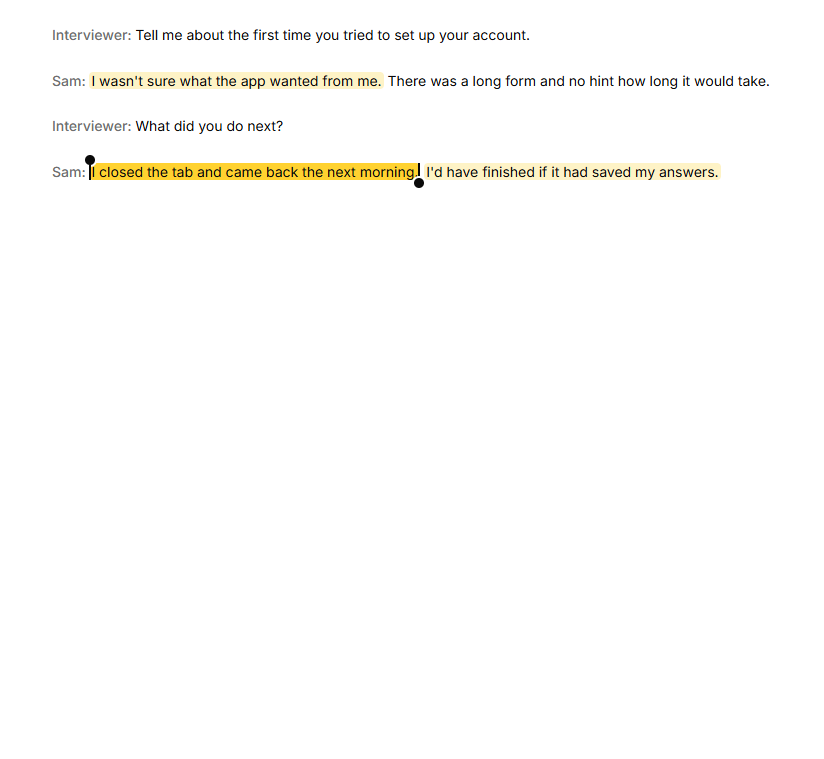
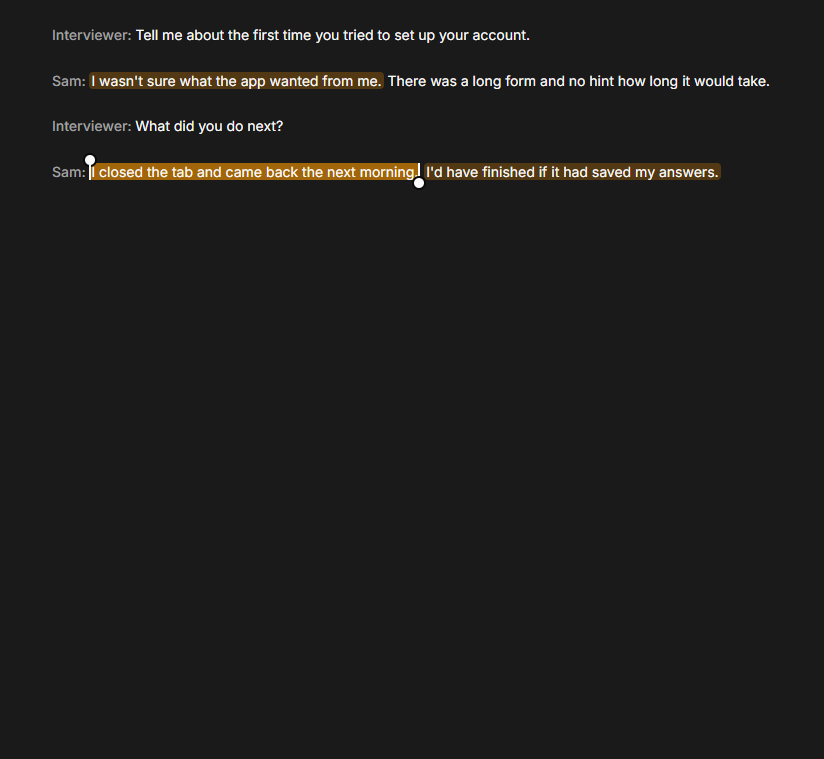
- Click the highlighted passage. A dot appears at each end.
- Drag a dot. It moves a word at a time, and a quote always keeps at least one word.
- Let go to save.
With the keyboard, Tab to a dot, press the left or right arrow to move it a word, then Enter to save or Escape to put it back. Tabbing away saves.
Find your highlights again
- Click Highlights in the tree.
- Type in Search quotes… and click Search.
- Click a name under Tag or Document to narrow the list. Click it again to undo.
- Click Clear to remove every filter.
- Click a row to see its card in the inspector.
The address bar keeps your filters, so you can send it to a teammate.
Delete a highlight
Anyone in the organisation can click Delete on a card. The highlight disappears at once, with "Highlight deleted." and Undo for a few seconds. Click Undo and it comes back with its tags, themes and board citations.
If you leave it, the highlight moves to Deleted, under Highlights in the tree, for 30 days. Click Restore there to bring it back. A highlight whose document is deleted can't be restored on its own: restore the document first. After 30 days it is removed for good.
If it doesn't work
- No Highlight button. Select inside the document text, with the mouse or Shift and the arrow keys, and release. Escape hides the button.
- The highlight stopped short of where you dragged. A quote is one speaker's words; it was kept to that turn.
- No dots on a new highlight. Wait for it to save, then click it again.
- "Quote not changed — check your connection and try again." The change didn't save. Check your connection and drag again. If it says "Quote not changed:" followed by a reason, the reason says what to change.