Delete and restore a board
You get a board out of the way without losing it: a deleted board waits in a folder for 30 days, and you can bring it back whole.
Delete a board
- Open the board.
- Click Delete at the top right, between Versions and Share.
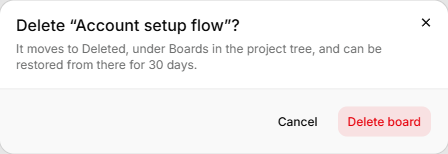
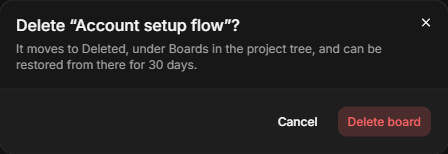
- Read the message: "It moves to Deleted, under Boards in the project tree, and can be restored from there for 30 days."
- Click Delete board.
You land on the Boards list. Anyone in the organisation can delete a board. There is no delete button in the list or the tree.
What happens to it
Nothing is removed. The board disappears from the Boards list and the tree, and opening its link or presenting it says it isn't found.
Links that use the board stop counting while it is deleted. Coverage and Used in ignore its evidence links, and a screen on it doesn't show under Implemented by on a step. They count again when you restore it.
Deleting a prototype takes its pages with it. The message reads Delete “Checkout” and its 2 pages?, with the board's own name and page count. Restoring the board brings those pages back. A page you deleted on its own earlier stays in Deleted. See Add pages to a board.
Restore a board
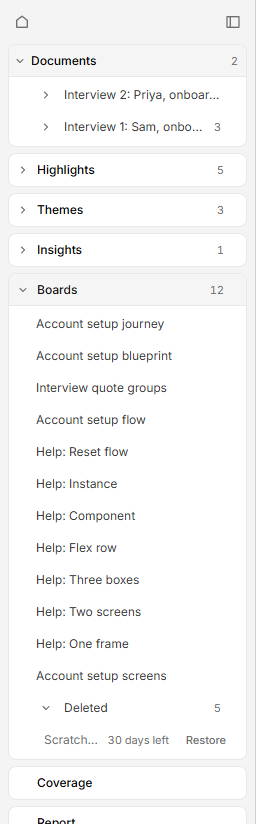
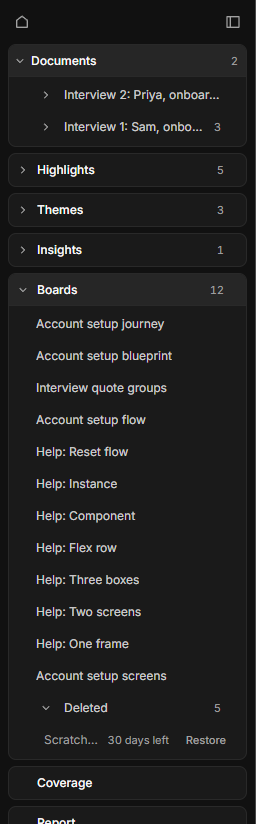
- In the tree, open Boards. A Deleted folder appears there once a board is in it. Open it.
- Each row shows the board's name and how long is left, such as "30 days left" for a board you have just deleted. Click Restore, or move to the row with the arrow keys and press Enter.
The board opens, as it was, with its shapes, links and versions.
After 30 days
A board in Deleted for 30 days is removed for good, with everything on it, and so are its saved versions. The row stops showing as soon as its 30 days are up.
A library board affects other boards too: boards using its components show them as missing until you restore it. See Share components between boards.
Other deleted things
Documents, highlights, themes and insights each have their own Deleted folder in the tree, with the same 30 days. See Add a document.