Write an insight from your themes
You get a written finding, backed by themes, that a reader can follow down to the original quotes.
Create an insight
- Click Insights in the tree.
- Click New insight.
It opens as "Untitled insight". To name it, click the name at the top of the inspector (the Insight title field), or right-click it in the tree and choose Rename.
Write the summary
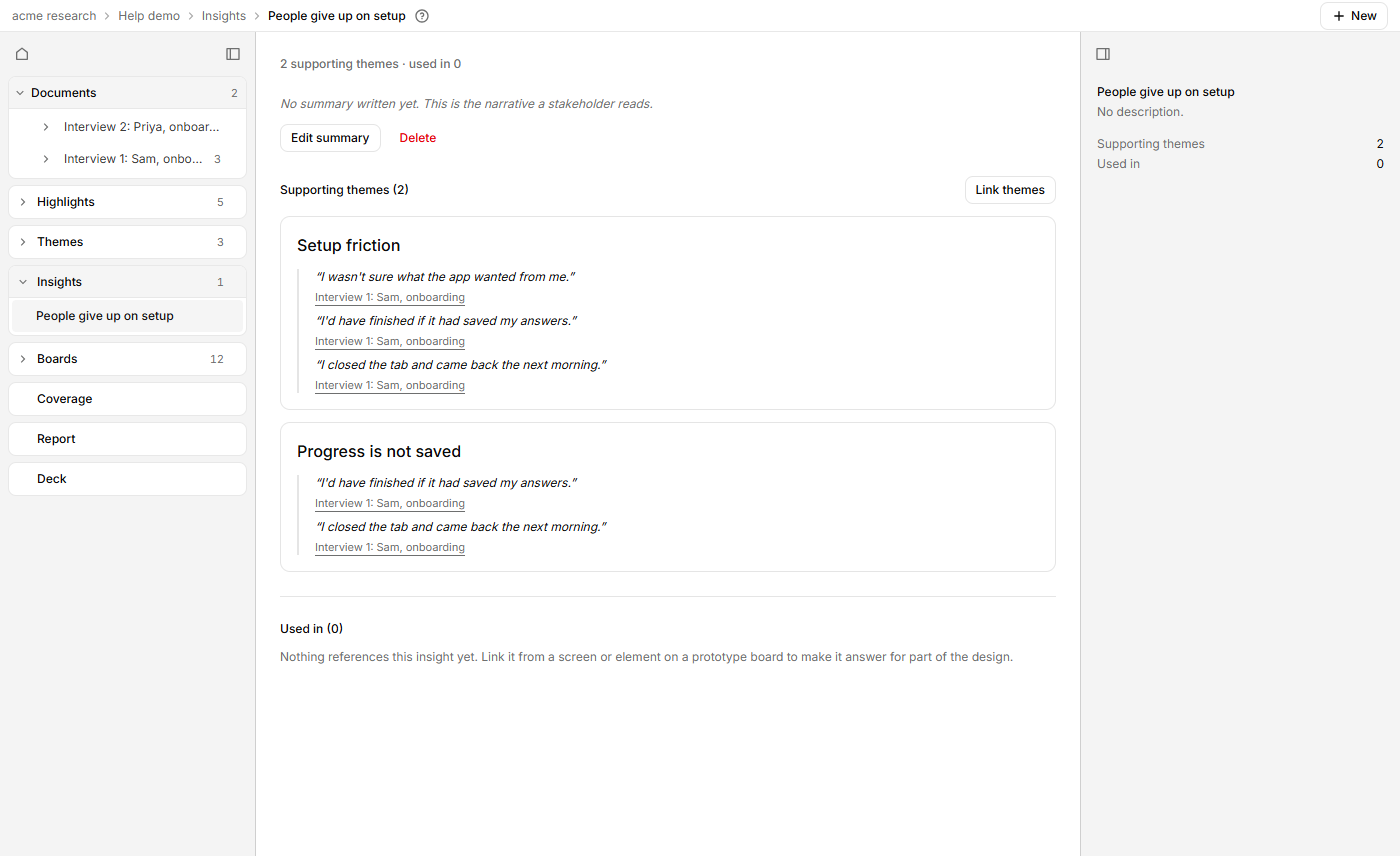
- Click Edit summary.
- Write in Summary. Markdown works: headings, bold, lists and tables.
- Click Save, or Cancel to discard.
A blank Title keeps the old name.
Link the themes behind it
- Click Link themes next to Supporting themes.
- Tick the themes in Link supporting themes. Untick one to remove it.
- Click Save.
The button is greyed out until the project has a theme. Each linked theme appears with its description and its quotes underneath.
Drill down to the transcript
Click a theme's name to open it. Click the document name under a quote to open that transcript at the quote, scrolled into view and marked as the active highlight.
Delete an insight
Click Delete, then Delete insight. The themes and highlights it drew on are kept. The insight moves to Deleted, under Insights in the tree, and for 30 days you can click Restore on its row.
See where it is used
Used in lists the prototype screens and elements that cite the insight.