Sign up, sign in and manage your account
You get an account you can sign in to with a password or an emailed link, an organisation to work in, and a profile that your teammates see.
Sign up
- Go to
/signup, or use the sign-up card on the home page. Enter your Email and a Password of 8 or more characters, and click Sign up. On the home page's card the button reads Create free account. - The page says "We sent a confirmation link to" your address. Open the link in the email to finish creating your account. It can take a few minutes, so check your spam folder too. If it doesn't sign you in, log in. If the page doesn't say that, you are signed in already.
- Resend the email sends it again. For a minute after each send it reads "Resend in 60s" and counts down, and "Sent again." confirms.
- Use a different email goes back to the form with your email and password still filled in, so you can fix a typo.
- With no organisation yet, you land on Create your organization. Type an Organization name (up to 100 characters) and click Create organization.
An organisation is your team's space: see Add people to your organisation. Its address comes from its name, with "-2" or "-3" added if that one is taken. If all three are taken, it fails with an error: change the name.
A Cloudflare check runs unseen and usually shows nothing at all. The buttons are ready at once. If you press Sign up (or Create free account) before the check has finished, it shows "Checking…" and sends as soon as the check passes. If the check asks you to click, click it. If the check fails, the page says one of three things:
- "The bot check didn't go through. Try again, and if a check appears, click it." The buttons stay ready: press again.
- "The bot check didn't go through. It retries by itself; if this stays, reload the page." The buttons are off until the check passes.
- "The bot check couldn't load. Reload the page, or turn off a blocker for challenges.cloudflare.com."
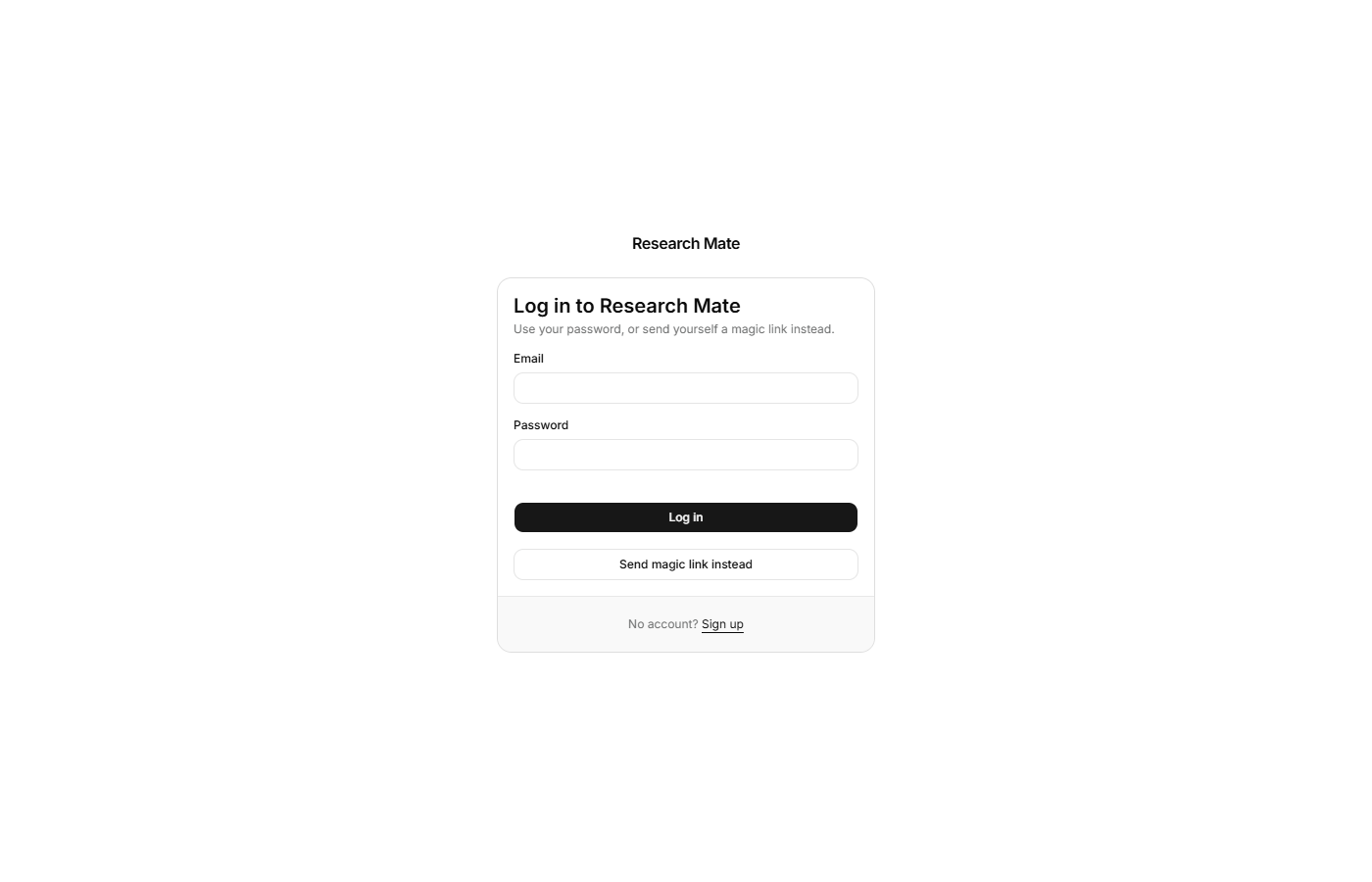
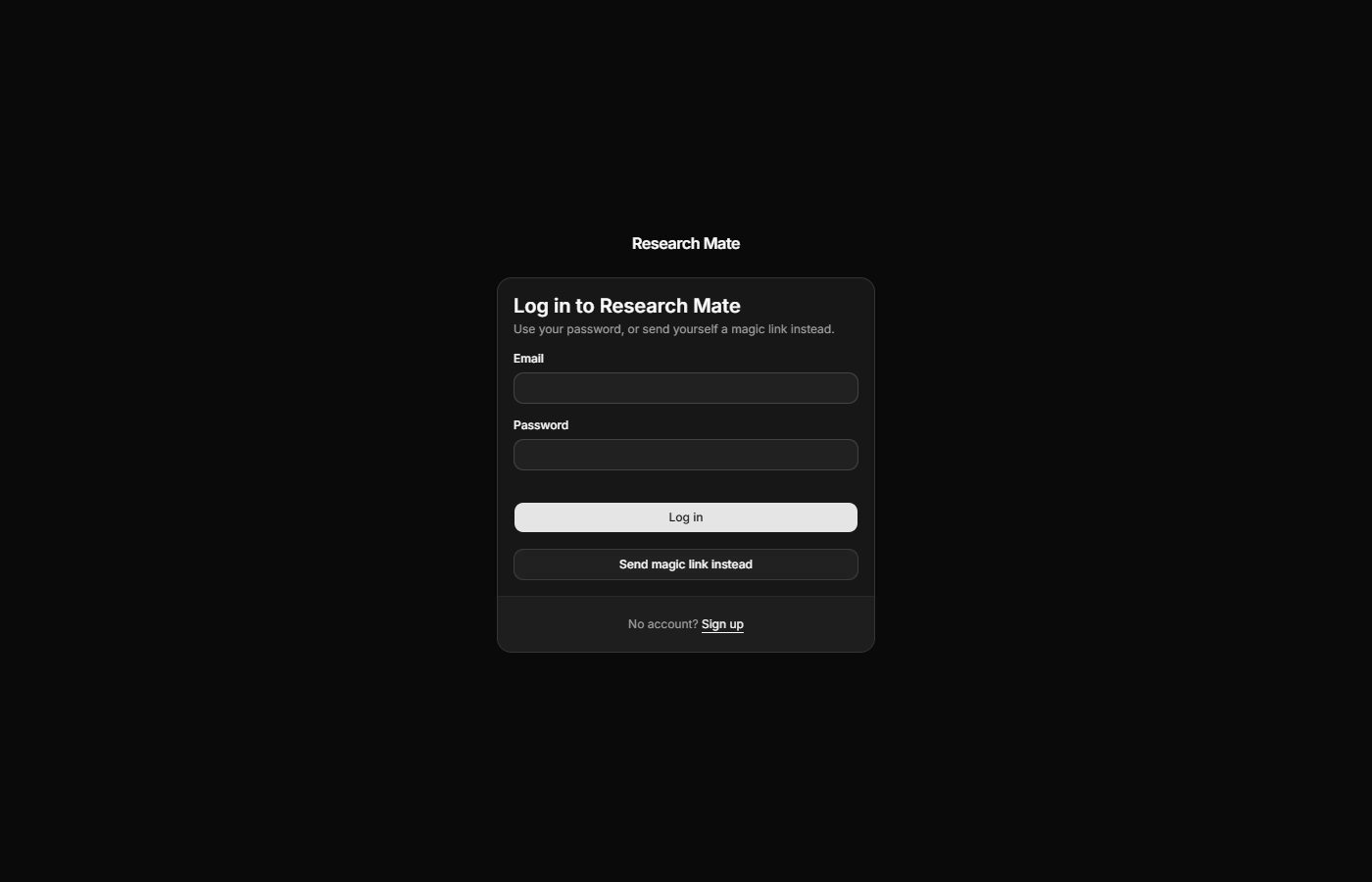
Sign in
- With a password: enter your Email and Password and click Log in.
- With a link: enter your Email and click Send magic link instead. The page says "Check … for a sign-in link." Open it.
With no email, the link button says "Enter your email first." Open the link in the same browser you asked from. A link that has expired, been used or been opened somewhere else sends you back to the login page without a message: ask for another.
The same Cloudflare check runs unseen. Log in and Send magic link instead are ready at once; pressed before the check finishes, one shows "Checking…" and sends once the check passes. If the check asks you to click, click it. If it fails you get the same two messages as on sign up.
Forgot your password?
- On the sign-in page, click Forgot password? under the password field. It opens
/forgot-password. - Enter your Email and click Send reset link.
- The page says "If an account exists for that address, we've sent a link to reset the password. Check your inbox." It says this whether or not an account exists.
- Open the emailed link in the same browser you asked from. It opens Choose a new password. Enter a password of 8 or more characters and click Update password. You are signed in and taken to your organisation, and any other device signed in to your account is signed out.
A link that has expired, was already used or was opened in a different browser returns you to the sign-in page with "That link has expired or was already used. Ask for a new one." Ask for a new link from Forgot password?. If the session lapses before you submit the new password, the page shows "This link has expired or was already used. Request a new one." Click Request a new link to ask again.
Only the link from your most recent request works, because each request replaces the last. If you asked again within a minute of the first request, the second was not sent: wait a minute and ask once more.
To change your password while you are signed in, see Change your password.
Sign out
Click your initials at the top right (Your account), then Sign out.
Your profile
Click your initials, then Profile. The page is the same in every organisation you belong to.
- Full name (up to 80 characters) and Nickname (up to 32). Teammates see your nickname, or the first word of your full name if you clear it. The nickname starts as the part of your email before the @, so change it if you would rather not show that.
- Cursor colour: other people on a board see your pointer, name and selection in this colour. Automatic picks one for you.
- AI model: who answers your AI requests and makes your drafts. Anthropic Claude is the default; Google Gemini is the other choice. What the AI reads is sent to that company.
- Prototype drafts: how Ask AI drafts prototype screens. Wireframe is the default; High fidelity adds colour, type and spacing, and takes longer. You can switch per draft with Fidelity in the chat.
- Example project: with Add the example project to organizations I create ticked (the default), each organisation you make starts with Research Mate tour (example), a finished study to explore. Untick it to start empty. Organisations you already have keep what they have.
- Click Save. "Saved." appears above it. Email can't be changed here.
Your initials come from your full name, or your nickname if there is none.
Change your password
On Profile, type a New password (8 or more characters) and Confirm new password, then click Change password.
If you signed in a while ago you may be asked for a code: "We emailed you a code to confirm it is you." Type it under Code from your email and click Confirm and change password. Send a new code asks for another, and Start over goes back.
When it works, the message reads "Password changed. Other devices were signed out."
Make another organisation
Click the organisation's name at the top left, then New organization. You can make 5 in a day (the day ends at midnight UTC): after that it says "Too many new organizations today. Try again tomorrow."
A new organisation starts with the example project unless you turned it off under Profile (see Your profile). Making it takes a few seconds longer, while "Setting up your organization…" shows.